

Ask Hops for a doc and it's created, drafted, and saved into the Space — ready to edit.
Docs is in Beta. Expect rough edges, and your feedback shapes where it goes next.
The Docs view
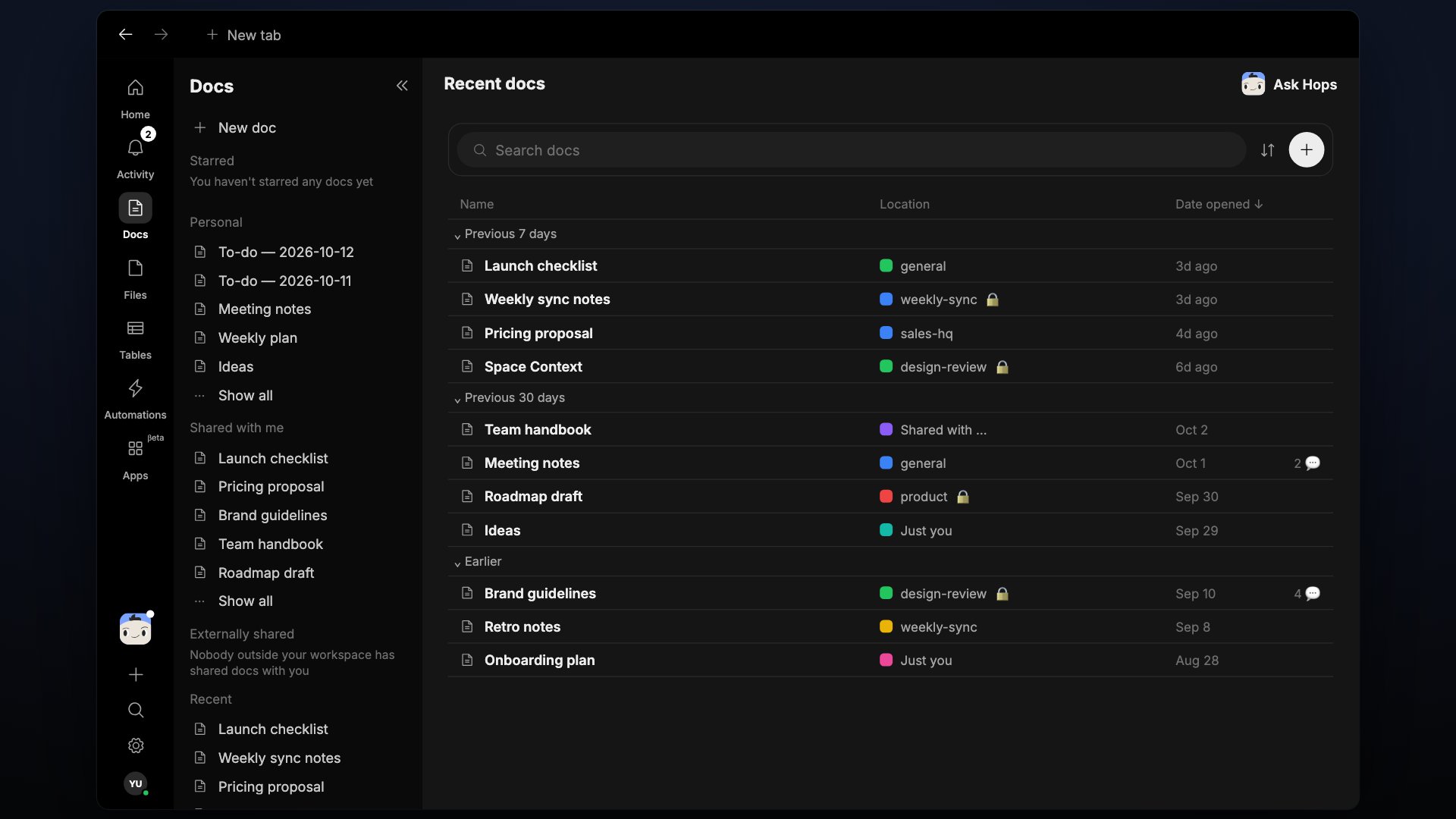
Docs are organised by where they live:- Starred — docs you’ve marked as favorites.
- My Docs & Tables — items in your personal space.
- Spaces — items inside each space and chat you belong to.
- Shared with me — docs someone else has shared with you.
- Externally shared — docs shared with people outside your workspace.
- Recent — docs you’ve opened most recently.
Create a doc
- Click New at the top of Docs & Tables and choose Doc.
- Click the global + button at the bottom of the left sidebar and choose Document.
- Ask Hops to write one — the result is saved as a doc in the current Space.
The doc editor
Every doc opens in a full-page editor with a formatting toolbar:Tables in docs
Edit tables from the small handles beside rows and columns: insert, move, delete, merge and split cells.Saving
If a save hangs, the editor retries on its own and tells you your latest edits are not saved yet, instead of losing them on reload.Star, share, and organize
- Star a doc to keep it in your Starred list.
- Share a doc so it becomes part of the Space’s context. The Share button says who has access, for example “Shared with 2 people and 1 group”.
- Move a doc between Spaces from the
...menu.
Generate a doc with Hops
Hops can create a doc for you. Ask in chat and the doc is written, saved into the current Space, and opened for review.Edit alongside Hops
Docs are collaborative. You and Hops can edit the same doc — Hops applies changes as tracked edits you can accept or refine.- Highlight a section and ask Hops to rewrite, tighten, or expand it.
- Ask for a summary of a long doc at the top.
- Ask Hops to extract action items into a checklist.
Mention people, Hops, and other artifacts
Type@ inside a doc to reference:
- Teammates — pings them and gives them context.
- Hops — kicks off an inline task; the response appears in the doc.
- Other artifacts — link to another doc, a sheet, or a file for cross-context work.
History and version control
Every change to a doc is tracked. Open the doc’s... menu to view history, see who edited what, and restore an earlier version if you need to roll back.
Export and share externally
From the doc’s... menu you can:
- Copy link to share with anyone with access to the Space.
- Export as Markdown or PDF to send outside Hops.
- Duplicate into another Space to reuse as a template.