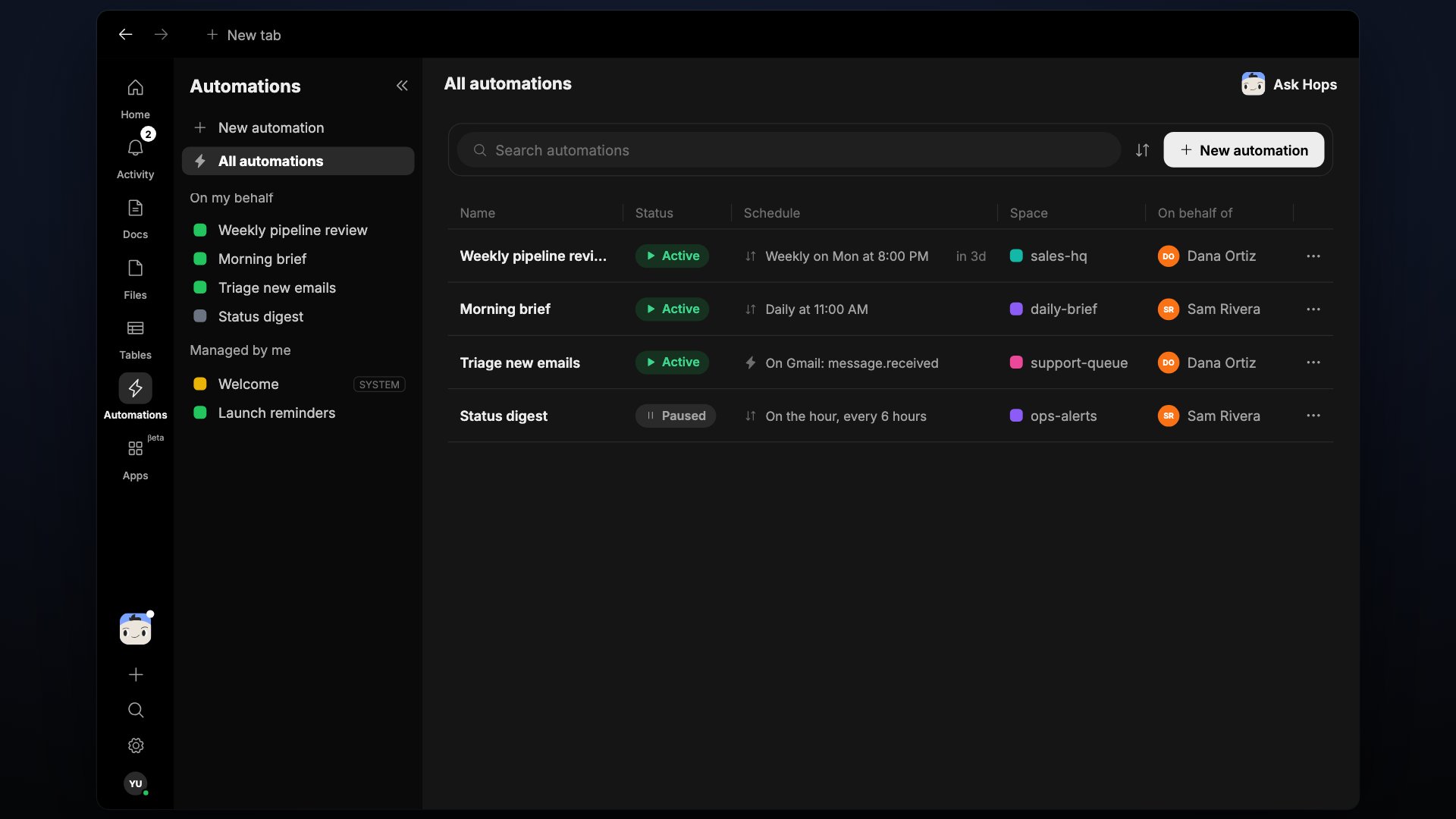
The Automations list
The list has a search box, a sort button, and a New automation button. Each row shows:- Name
- Status — Active or Paused
- Schedule — for example weekly, or the event that triggers it
- Space — where it runs
- On behalf of — whose access it runs with
Create an automation
1
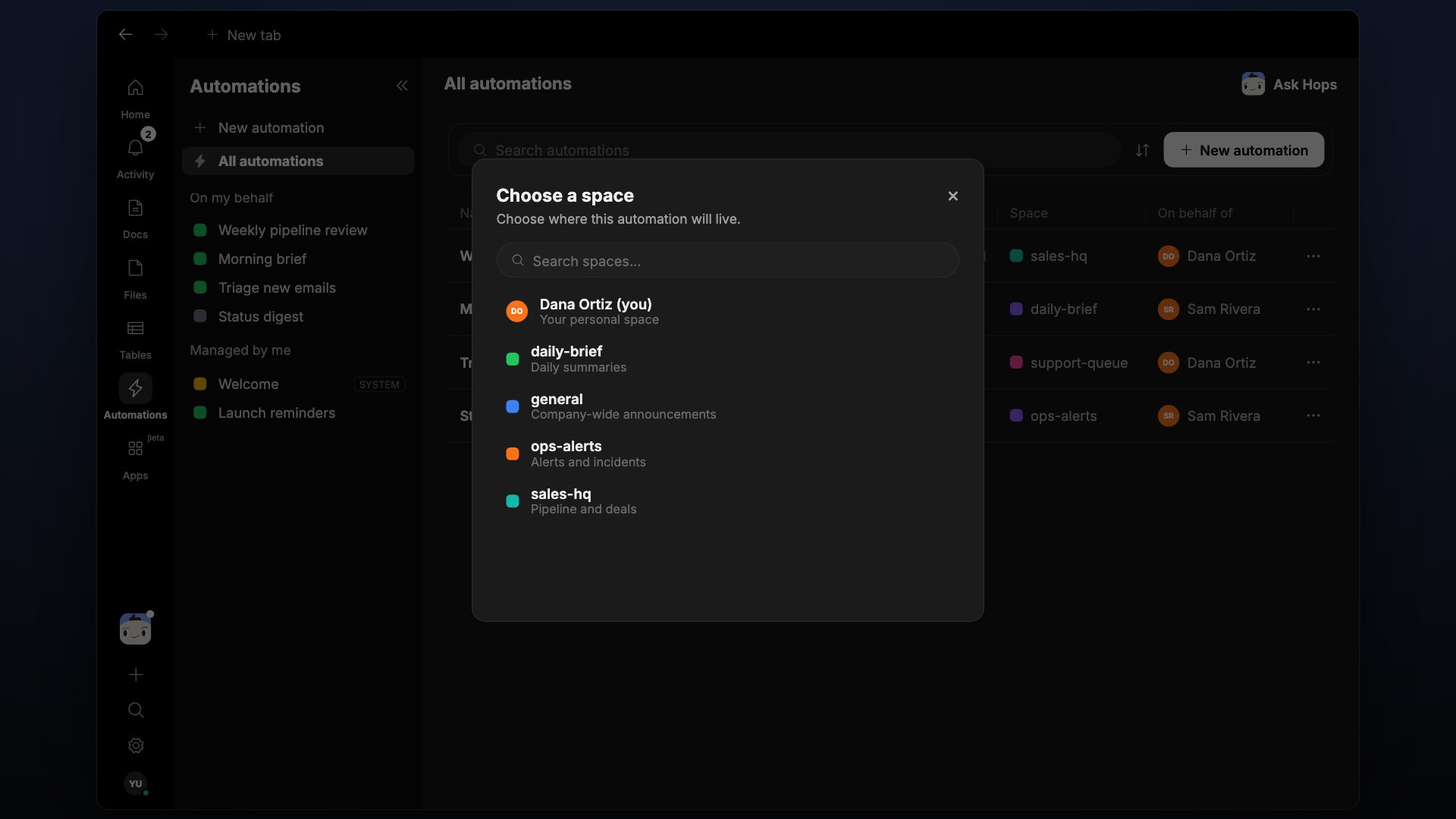
Click New automation
On the Automations page, click New automation. Describe what it should do under What should your automation do?
2
Review the draft
Hops opens a draft with Runs and Configuration tabs. A Draft banner with a Publish button stays at the top until you publish.
3
Set when it starts
Under Start automation, pick a trigger. For a schedule, choose Weekly, the days, and the time. Set the Timezone.
4
Choose what it can access
Under Access during runs, pick the Connections and Spaces the automation can use.
5
Write the instructions
Write the instructions in the full document editor. Tell Hops exactly what to do each run, the same way you’d write it in a chat. Click Improve with Hops to have Hops tighten the wording.
6
Publish
Click Publish. The automation becomes Active and its Runs tab fills in as it executes, with links back to each run’s chat session.
Managing automations
Finished one-off automations move into a collapsed Completed group instead of disappearing. Click an automation to open its Runs history and Configuration. Pause it, or change its trigger, access, or instructions from there.