

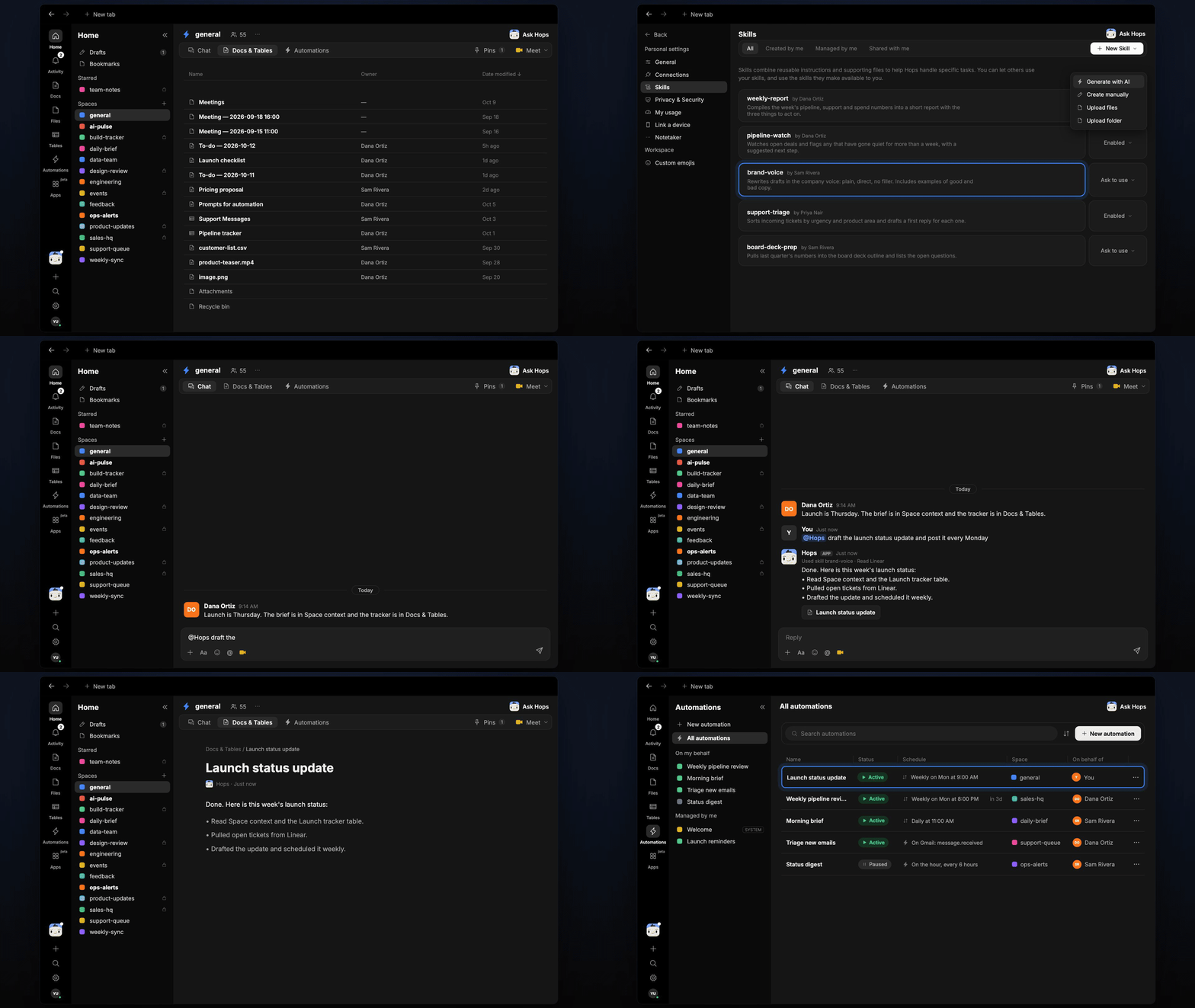
Hops reads the Space context, uses a skill and a connection, writes a doc, and sets up an automation.
Hops, one agent
There are two ways to work with Hops:@Hopsin a Space: tag Hops in any conversation. It replies in the thread, where the whole team can see it.- Chat with Hops: click Ask Hops or the Hops avatar in the left rail for a private one-to-one chat.
Spaces
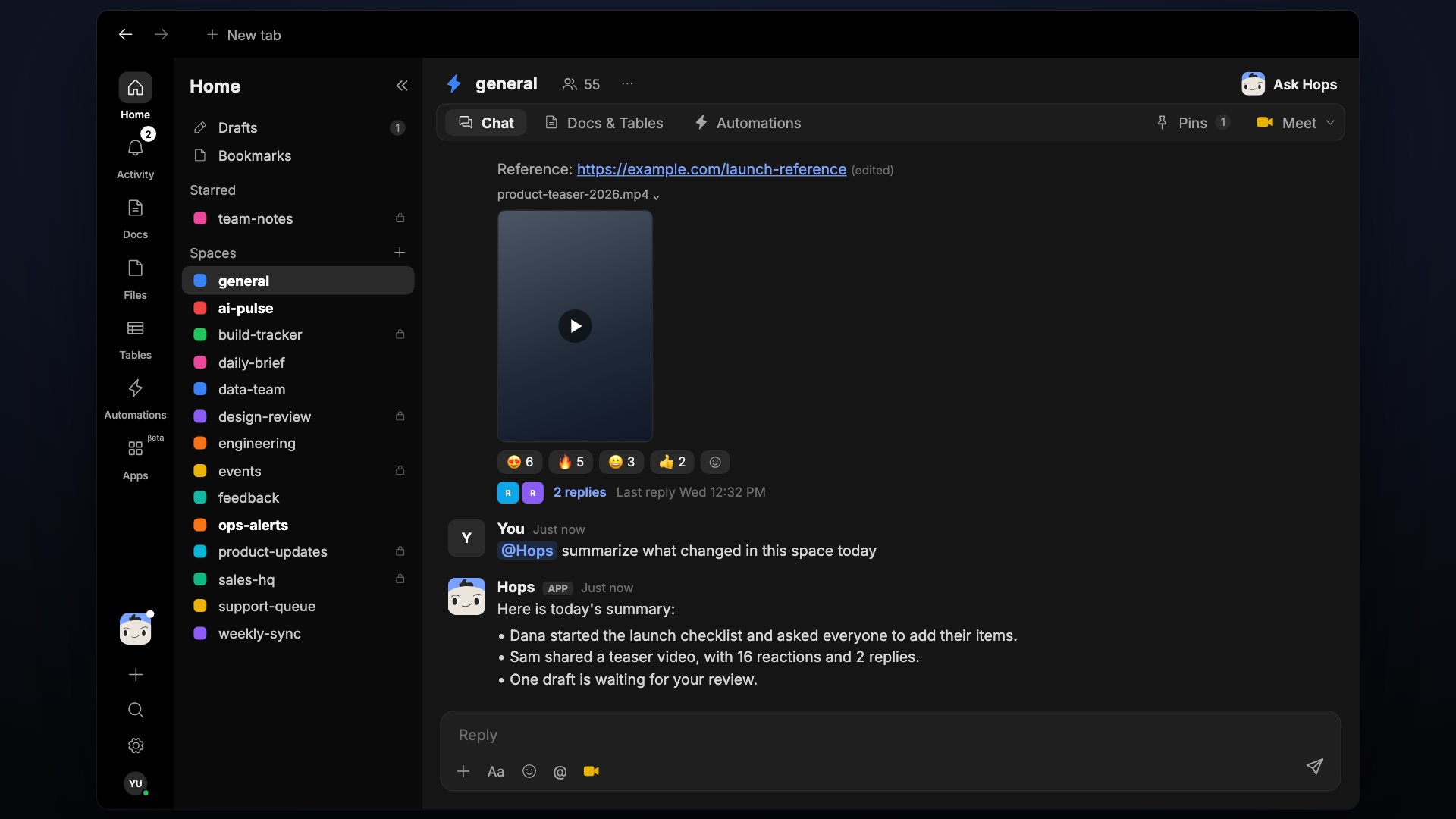
A Space is a project room for a launch, a client, or a team. Each Space has three tabs:- Chat: conversations with your team and with Hops.
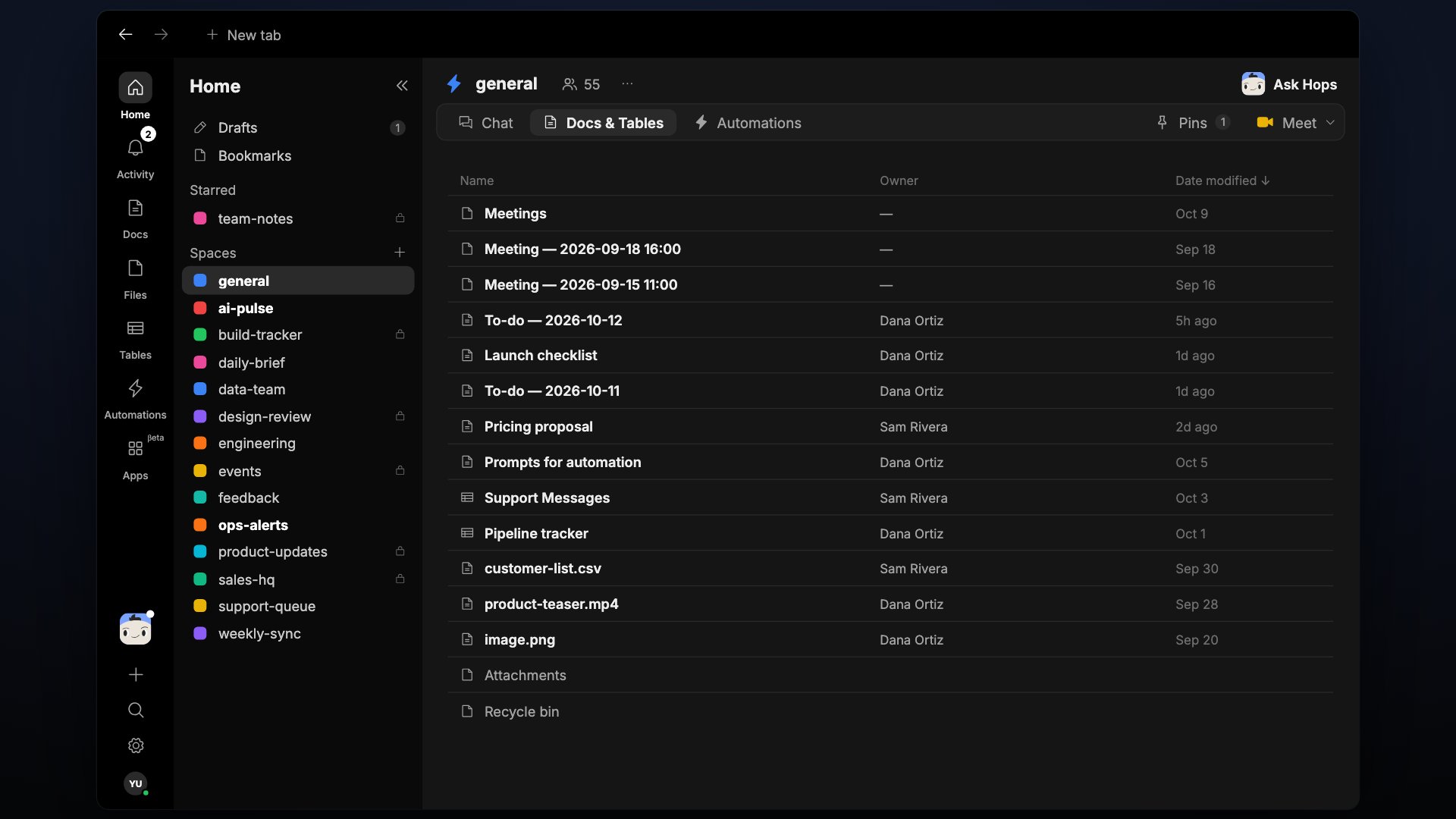
- Docs & Tables: the Space’s shared docs and tables.
- Automations: recurring work Hops runs for this Space.
One Space per project keeps Hops focused and more accurate.
Space context
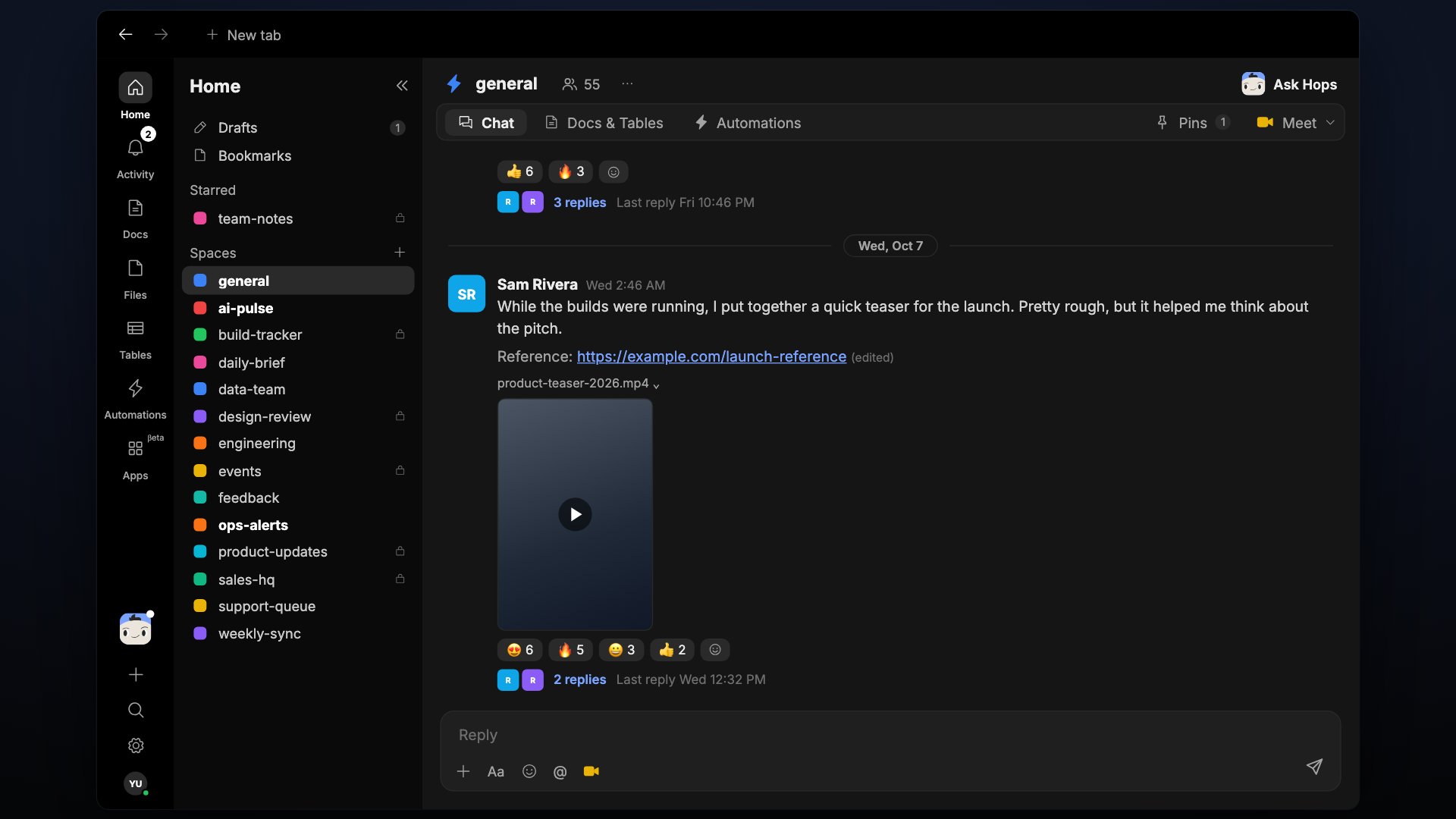
Hops reads before it answers. In a Space, its context comes from:- Space context: a pinned brief that Hops always reads.
- The Space’s conversations, docs, tables, and files.
- Tools you’ve connected, such as Slack, Google Drive, Linear, and Salesforce.
What extends Hops
Hops stays one agent. These four things change what it knows and what it can do.Skills
A skill is a reusable playbook, such as brand voice, pipeline review, or an incident runbook. When Hops uses one, the reply says so, for example Used skill brand-voice. You can install a skill from the catalog or build your own.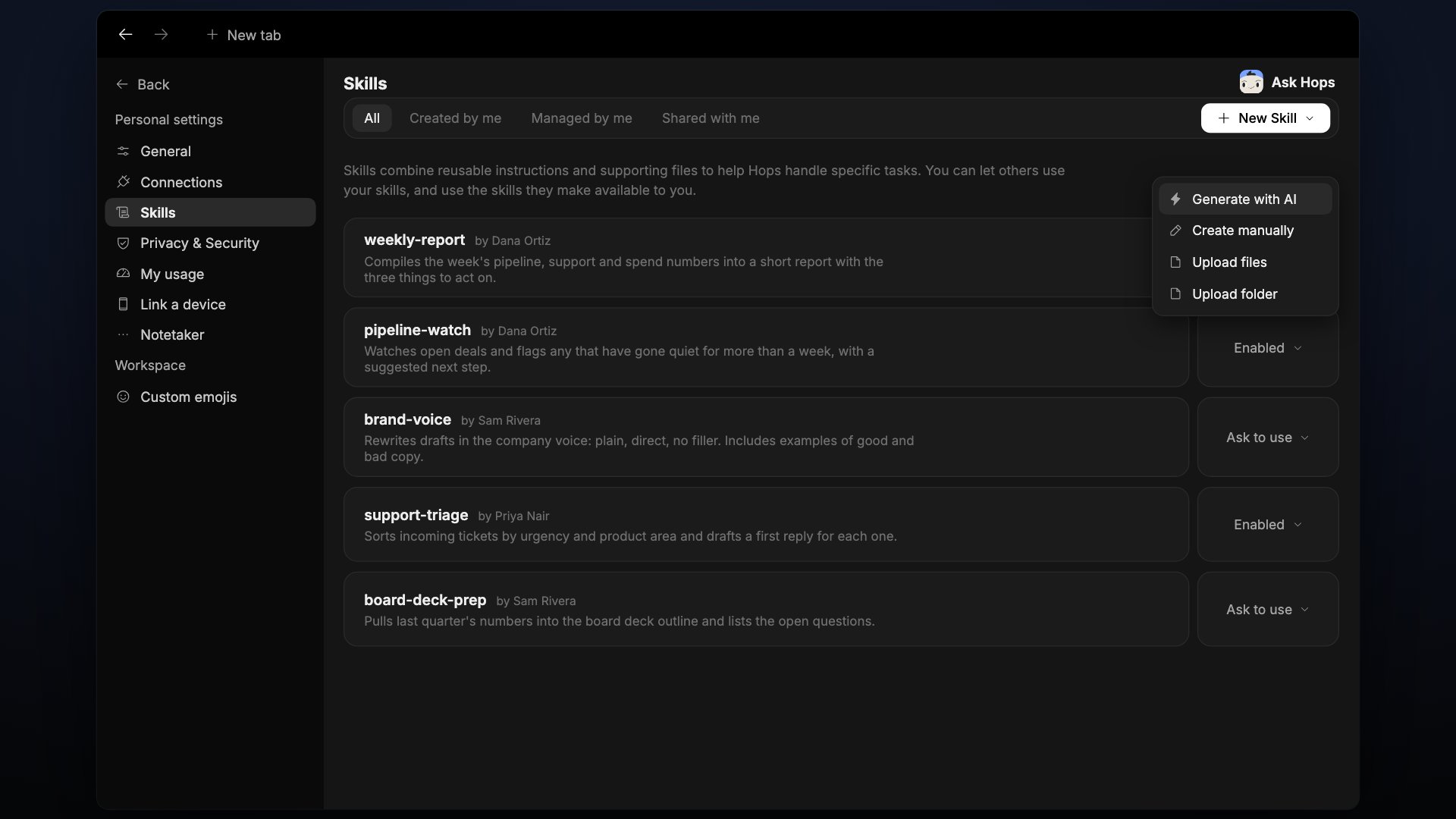
Connections
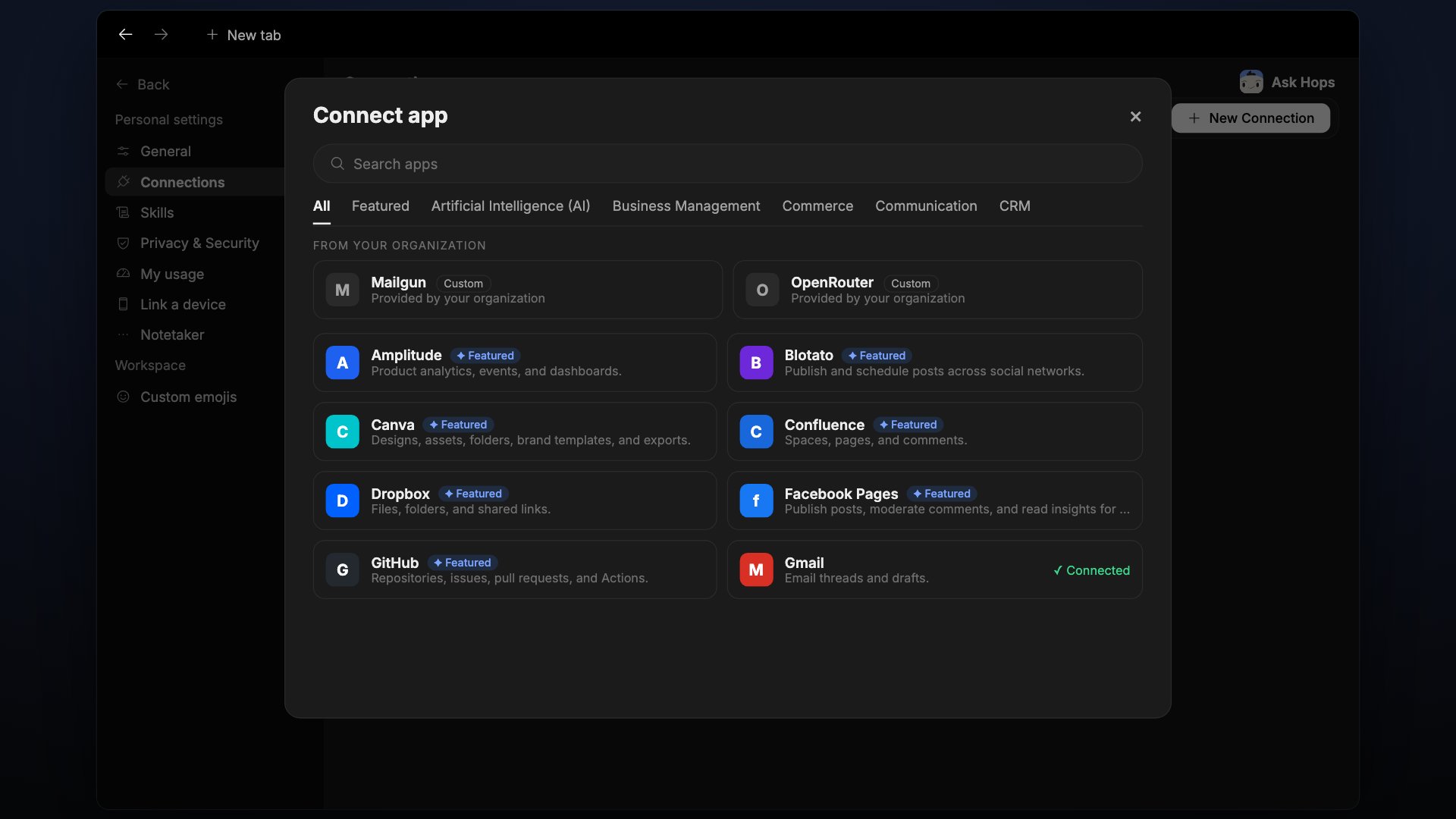
Connections let Hops read from and act in your tools. More than 2,000 apps are available through the catalog.- Workspace connections are shared, and Hops uses them in every Space.
- Personal connections stay yours.
Automations
An automation is a prompt Hops runs on a schedule, for example “post the launch status every Monday at 9:00 AM”. You can ask for one in chat or create it from the Automations page.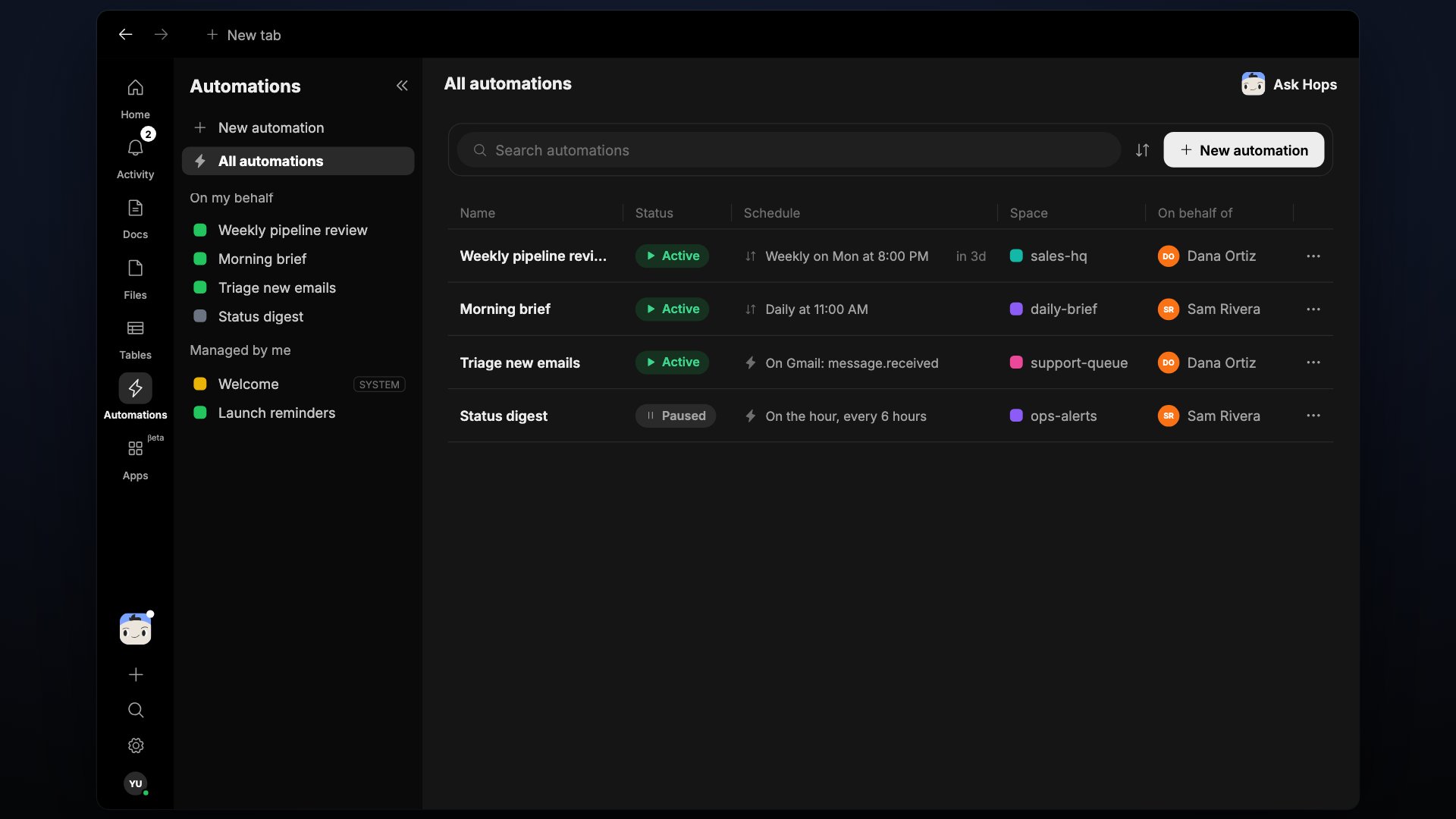
Apps
Apps are small tools that Hops builds for your team, such as trackers, dashboards, and forms. They live in the Apps tab of the left rail.Artifacts
What Hops produces is saved as artifacts that your team can open, edit, and share:- Docs: briefs, plans, and reports.
- Tables: structured data such as trackers and lists.
- Files: uploads and exports.
Search
One search covers your whole workspace. Click the Search icon in the left rail or press ⌘ K. Search finds the Spaces, messages, docs, tables, and files you have access to. You can filter by From, In, Type, or Shared with.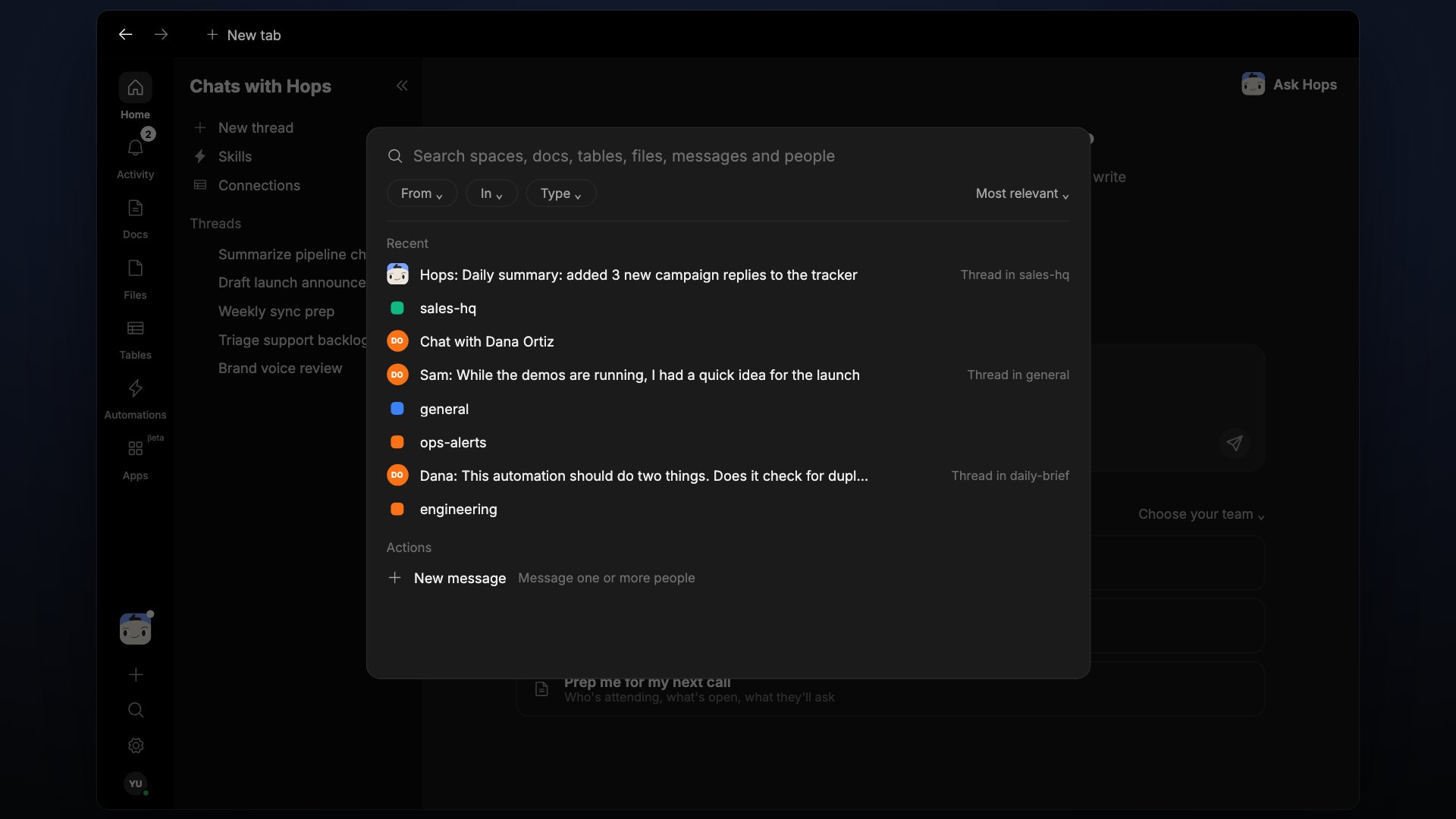
Visible work and approvals
Every Hops reply shows what it used, such as a skill, a connection, or a doc. Anything with real-world consequences, like sending an email or updating a record, asks for your approval first.What’s next
Quickstart
Set up your workspace and talk to Hops in under five minutes.
Spaces
How Spaces organize your team’s work.
Hops
One agent, extended by skills.
Connections
Connect the tools your team already uses.