

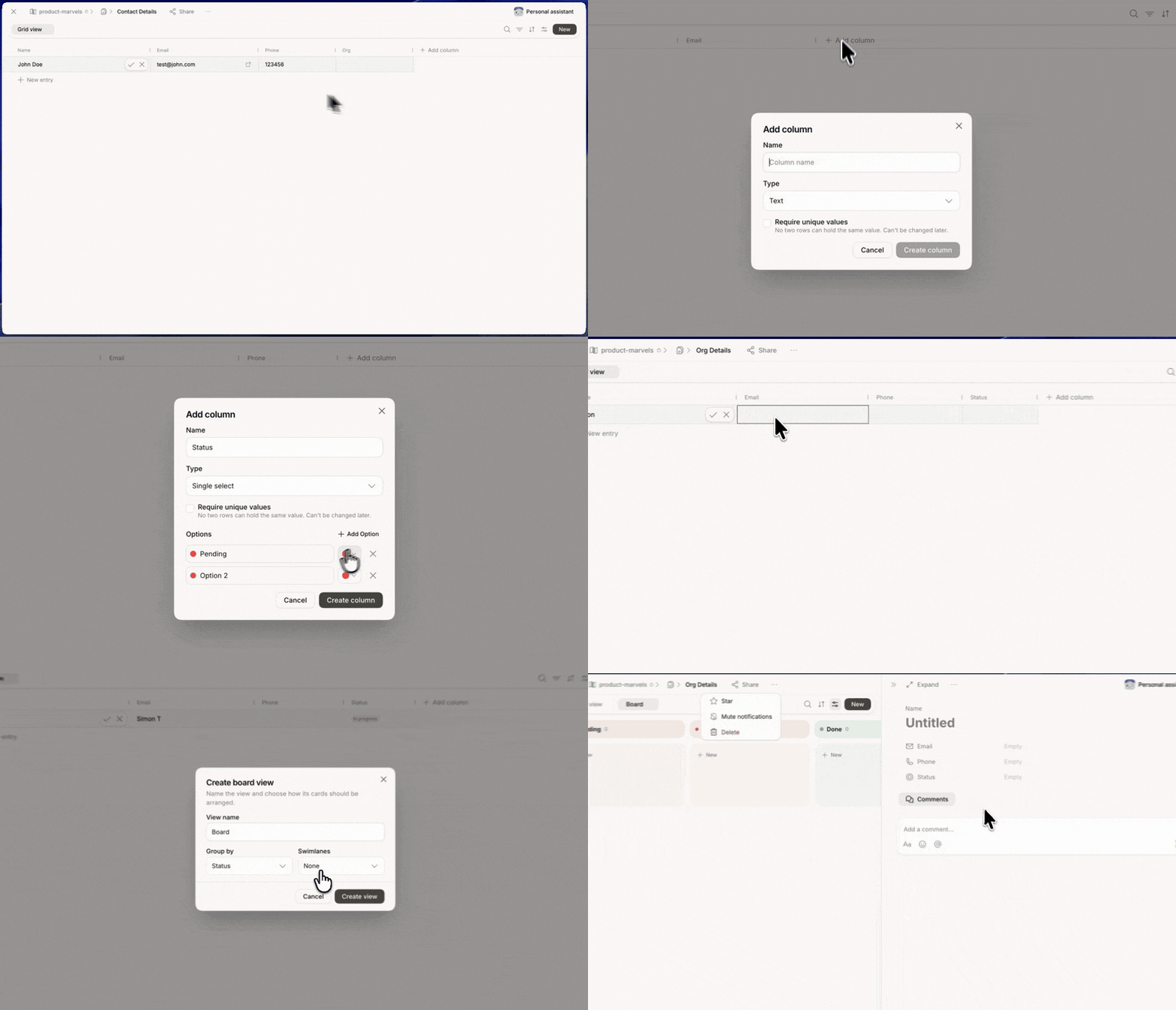
Ask an agent for a table and it's built, populated, and saved into the Space — ready to filter and edit.
The Sheets view
Sheets are grouped in three sections:- Starred — sheets you’ve marked as favorites.
- Shared with me — sheets someone else has shared with you.
- Recent — sheets you’ve opened most recently.
Create a sheet
- Click + New table at the top of the Tables sidebar.
- Or click the global + button in the left sidebar and choose Table.
Working with a sheet
A sheet opens in Grid view, with column headers across the top and one row per record.
Click any cell to edit inline. Click a row to open its full record.
Generate a table with an agent
Any agent in the Space can create a fully-formed table for you. Ask in chat and the sheet is built with columns, populated with rows, and saved into the current Space.Column types
Pick the right type per column so filters, sorts, and agent updates behave predictably.
Click a column header to rename, change type, or reorder.
Views
Save different perspectives of the same data as views. Every view has its own filter, sort, and column visibility.- Grid — the default spreadsheet layout.
- Filtered views — e.g. “Open deals only,” “This quarter,” “My rows.”
- Grouped views — collapse rows by a Select column like status or owner.
Edit alongside your agent
Ask the agent to work directly on the sheet:- Enrich rows — “fill in the
Industrycolumn for every row from the company’s website.” - Summarize — “give me a one-paragraph read on this pipeline.”
- Add rows from a chat message, an email, or a doc.
- Reconcile duplicates or normalize inconsistent values.
Import and export
- Import CSV from the sheet’s
...menu to bring in existing data. - Export CSV to send outside Hops.
- Copy link to share the sheet with anyone with access to the Space.
- Duplicate into another Space to reuse as a template.